Get more than you expect from a backup program
SmartSync Pro Server Properties
|
Top
|
|
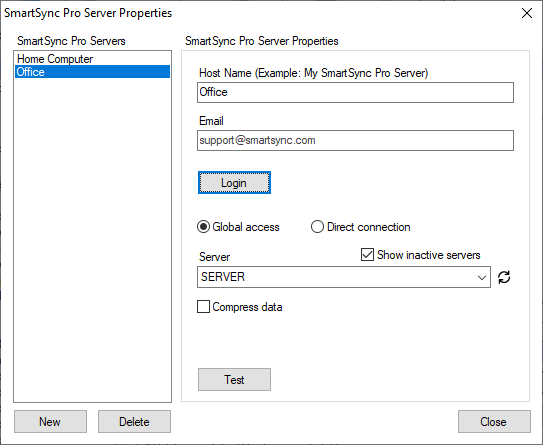
To edit the list of SmartSync Pro Server accounts, use the SmartSync Pro Server Properties dialog box.
SmartSync Pro Servers list
|
Description
|
New
|
Adds new account to the list.
|
Delete
|
Deletes the selected account from the list.
|
When you select a SmartSync Pro Server account from the list, its properties are displayed in the right side panel.
Cloud Properties
|
Description
|
Host Name
|
Please provide a unique alias name for the SmartSync Pro server. For example: My Office.
|
Email
|
Shows email associated with your SmartSync Pro account. It will be filled when you authorize to SmartSync Pro account using Login button.
|
Login
|
Click this button to log in to your SmartSync Pro account.
|
Global access
|
Select this option to connect to computers from specified account.
|
Direct connection
|
Select this option to connect to computer directly by specifying the Server Address and Port
|
Server
|
The drop-down list allows you to select a computer from the specified account. Computers that are offline are grayed out.
|
Show inactive servers
|
Check this box to include computers that are turned off and disconnected from the network in the list.
|
Compress data
|
Check this box to use data compression during transmission. This will reduce the amount of data transferred, such as text.
|
Test
|
Click this button to test the connection with the selected computer.
|
|
|
SmartSync Pro Help Contents
| |


 Sign me up